


Power up the nRF54L15 Tag
Step 1 of 8

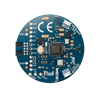
Take the nRF54L15 Tag out of the packaging.
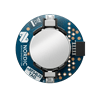
Pull out the tab under the CR2032 battery to power up the nRF54L15 Tag.
The LED should start blinking once it has powered up.
Verify that the nRF54L15 Tag is advertising
Step 2 of 8

Open the nRF Toolbox app on your phone and make sure it is scanning. The app is available on Play Store and App Store.
Verify that you can see that the nRF54L15 Tag is advertising as "Nordic_LBS".
Connect to the tag
Step 3 of 8

1. Connect to the tag by selecting "Nordic_LBS". The RGB LED will change color when connected.
2. The color of the RGB LED can be changed with the Light slider on the app. Verify that the LED changes the color when you interact with the slider.
3. Press the BTN1 (User-programmable button) on the nRF54L15 Tag and observe that the Button in the app changes state.
4. Disconnect and close the app.
Plug the nRF54L15 Tag onto an nRF54L DK
Step 4 of 8

To prepare for programming and debugging the tag:
1. Grab an nRF54L Series development kit (DK).
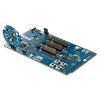
2. Insert the nRF54L15 Tag into the DK's DEBUG OUT header. Make sure the alignment pin on the nRF54L15 Tag aligns with the pin in the header.
Build the sample application
Step 5 of 8

1. Open the nRF Connect for VS Code extension.
2. Select "Create a new application > Copy a sample", and then the latest SDK version.
3. Choose the Bluetooth Channel Sounding Reflector with Ranging Responder (RRSP) sample and build it for "nrf54l15tag/nrf54l15/cpuapp" (found under Nordic SoCs).
Program the nRF54L15 Tag using the nRF54L DK
Step 6 of 8

Once the sample is built and the build file is selected, program it onto your nRF54L15 Tag.
NOTE! After this, you will lose OTA DFU capability until re-adding it to the firmware. If you wish to preserve OTA DFU, include it in your application (see the blog post below for instructions).
1. Plug in the nRF54L Series DK to your PC with a USB-C cable.
2. Select the DK on nRF Connect for VS Code.
3. Press Flash.
Verify the application
Step 7 of 8

Open the nRF Connect for Mobile app on your phone again and make sure it is scanning.
Verify that you can see the nRF54L15 Tag now advertising itself as Nordic CS Reflector. You can read more about the sample's functionality in the technical documentation.
Learn more about the nRF54L15 Tag
Step 8 of 8

To learn more about nRF54L15 Tag, head over to the DevZone blog and read through the Introduction to nRF54L15 Tag blog post — the link is found just below this section.
Happy prototyping!
Get started developing
To get started developing custom firmware for nRF54L15 Tag, please see the nRF54L15 Tag section of the nRF Connect SDK documentation. Remember to also check out this DevZone blog post for an introduction to the nRF54L15 Tag.
For more information on the hardware of the nF54L15 Tag prototyping platform, see the Hardware User Guide. If you have further questions, get in contact with our technical support team on DevZone.